
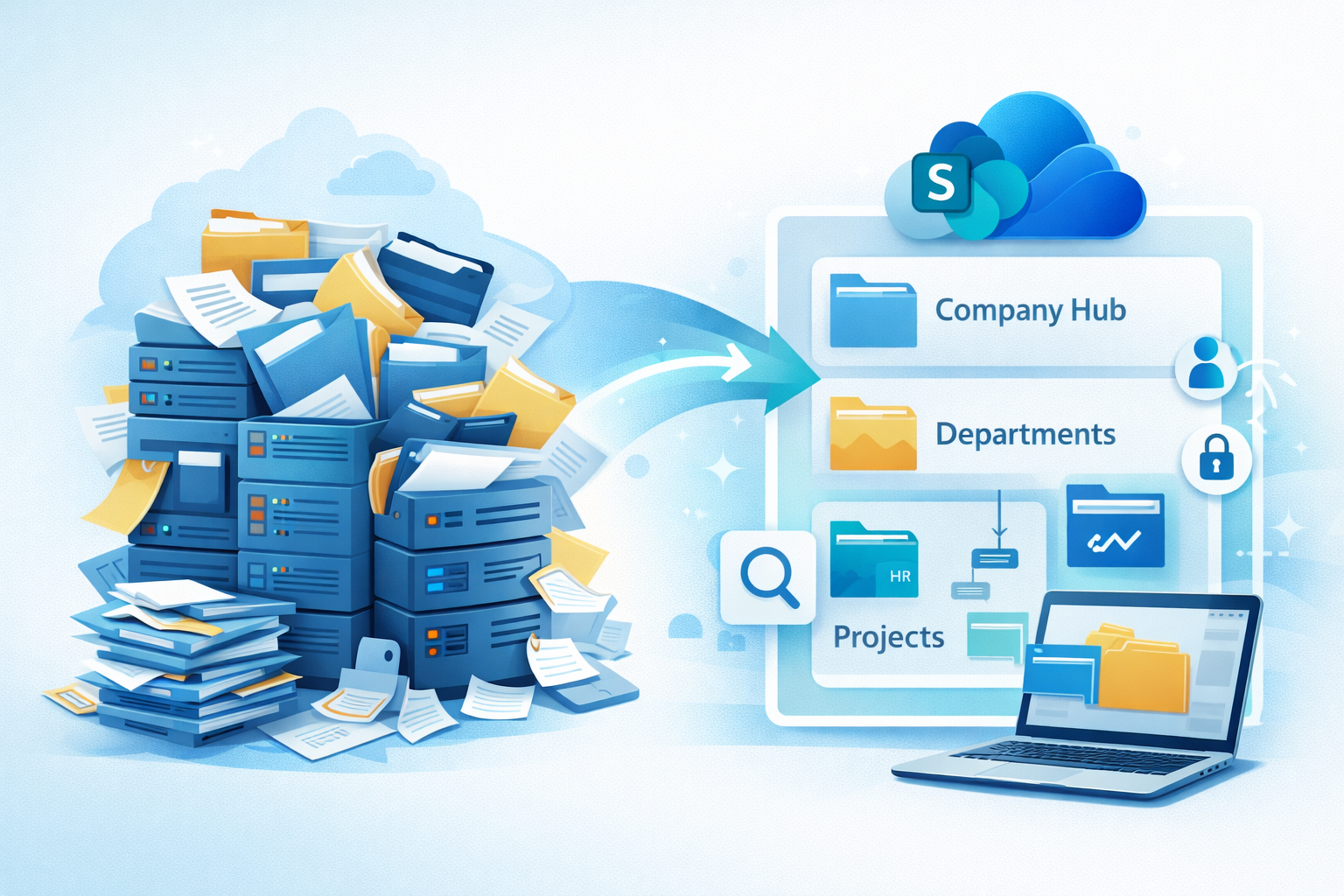
If SharePoint has ever felt like a maze of folders, permissions, and “where did that file go?”, you’re not alone. The good news: with a simple structure, a few guardrails, and some light training, SharePoint becomes the calm, central hub your business actually enjoys using.
This guide walks you through how to set it up (or tidy it up) without the drama.
Why SharePoint (when we already have folders and email)?
Because folders and email don’t scale. SharePoint gives you:
– One source of truth (no more “final_v7.docx”).
– Fast search across files and pages.
– Built-in security, version history, and sharing controls.
– Seamless links with Teams, Outlook, Word, Excel, PowerPoint, and OneDrive.
Think of SharePoint as secure, organised, shareable files + simple intranet in one place.
Start with structure (not drag-and-drop chaos)
If you bulk-upload the entire Z:\ drive, you’ll copy every bad habit you’ve ever had. Instead:
1) Create a simple site map
– Company Hub (news, policies, people, links).
– Departments (Finance, Sales, Operations, HR, Marketing, etc.).
– Projects/Clients (repeatable workspace template).
– Resources (templates, brand assets, forms).
2) Keep names short and obvious
“Proposals” beats “New Business Development and Sales Documents (Proposals)”.
3) Use a repeatable template for projects/clients
Each workspace gets the same folders (00 Admin, 10 Planning, 20 Delivery, 30 Assets, 40 Closed), a “Start here” page, and a checklist.
——————————————————————————————————————–
Permissions that make sense (and don’t need a detective)
Ditch folder-by-folder exceptions. Use the standard SharePoint roles:
– Owners – a few trusted people who can change settings.
– Members – your working team (add/edit).
– Visitors – read-only (stakeholders who just need to see).
Tips that save headaches:
– Start “private by default”. Invite people in when needed.
– Avoid item-level unique permissions unless essential.
– For external sharing, prefer “specific people” links with expiry dates.
– Review site members quarterly; especially external guests.
Sync smart (and stop filling laptops)
The OneDrive sync client is brilliant; used well.
– Turn on Files On-Demand so content stays in the cloud until opened.
– For shared libraries, use Add shortcut to OneDrive (fast access, no full sync).
– Pin critical folders “Always keep on this device” for field staff.
– Keep large, rarely used archives as cloud-only (search still finds them).
Metadata and search: the secret sauce
Folders are fine, but folders + metadata are better. Add a couple of columns (e.g., Client, Project Status, Document Type) and create views:
– “Active Projects” (Status = Active).
– “By Client” (Group by Client).
– “Approvals Due This Month” (Filter by date).
Now people can filter to the file instead of guessing a folder path.
Tame Teams & SharePoint sprawl
Every new Team creates a SharePoint site. Without guardrails you’ll get duplicates and orphans.
– Naming rules: DEPT – Team Name, PROJECT – Client – Project.
– Owner accountability: two named owners per Team/Site.
– Lifecycle policy: archive after 90 days of inactivity (with an opt-out).
– Request form: new sites/Teams created from a guided template (channels, folders, tabs, permissions).
Make sharing safe (without slowing people down)
– Enforce SPF/DKIM/DMARC on your domain to stop spoofing of links you share.
– Default to “specific people” links (internal/external) with expiry and no download for sensitive docs.
– Use Sensitivity Labels (e.g., Public, Internal, Confidential) to set encryption and sharing rules automatically.
– Turn on version history and Recycle Bin (you get them by default teach people how to use them).
Everyday habits that make a big difference
– Use Share links instead of attachments (Outlook makes this easy).
– Open files with Open in App when editing Word/Excel/PowerPoint.
– Check Version History before asking “who changed this?”
– Keep meetings in Teams channels and store files in the channel, not “My files”.
Adoption: light training beats long manuals
– 15-minute show-and-tell per team: where to save, how to share, how to find.
– A short “Start here” page on each site with the top three actions and links.
– Nominate a friendly SharePoint Champion per department.
– Publish two-minute how-to videos (Add shortcut; Share a link; Restore a version).
——————————————————————————————————————–
Your 30-day SharePoint tidy-up plan
Week 1 – Discover
– List active shares, key folders, and who uses them.
– Draft your new site map and naming rules.
Week 2 – Design & Pilot
– Build the Company Hub and one Department site.
– Create the Project/Client template site.
– Test with a small group; gather feedback.
Week 3 – Migrate & Train
– Move high-value/current folders first (not the entire archive).
– Run two 30-minute sessions: “Find it fast” and “Share safely”.
Week 4 – Govern & Improve
– Turn on link expiry and guest access reviews.
– Add two metadata columns and saved views to your busiest libraries.
– Document your simple rules on the Hub (and stick to them).
Common gotchas (and quick fixes)
– Path length errors: Flatten deep folder trees and shorten names.
– Broken links: Replace “Z:\” links with Share links; move referenced files together.
– Permission spaghetti: Reset inheritance; stick to site roles and M365 Groups.
– Sync overload: Files On-Demand, shortcuts, and selective pinning.
– Guest bloat: Quarterly review, expiry dates, and “specific people” links.
——————————————————————————————————————–
Bottom line
SharePoint isn’t hard; it just needs clear structure, simple rules, and a tiny bit of training. Do that, and you’ll have fast-find files, safer sharing, happy auditors, and teams who stop asking where the latest version lives.
👉 Contact us if you’d like a quick SharePoint health check, a tidy-up sprint, or a template pack you can roll out across your business.